Visualizzazione post con etichetta GMA 500 Driver. Mostra tutti i post

DOWNLOAD

Codename
GMA 500
Architecture
PowerVR SGX535 (Serie SGX-5)
Pipelines
4 - unified
Core Speed *
200 MHz
Shader Speed
200 MHz
Memory
Until 1GB Shared
DirectX
DirectX 9.0c, Shader 3.0
Technology
65 nm
Features
OpenGL 2.0, PowerVR SGX Kern, Screen Tiling, Internal True Color Processing,Zero overhead AA, 32 Bit floating-point operations.
Date of Announcement
01.11.2008

Driver
Version
Date
Download
IEMGD 1.18
7/8*/8.1*/10*
8.14.1180.3398
Core 04/04/2013 Rev 2017
Official Intel 7/8*/8.1*/10*
8.14.10.2030
09/16/2010
IEMGD 1.18 XP/Vista*/7*
1.18.0.3398
Core 04/04/2013  Rev 2014
Official Intel XP/Vista*/7*
6.14.11.1018
12/03/2009
  N.A.
Official Intel Vista
7.14.10.1006
06/23/2009
  N.A.
Mesa3D - Wrappers
2.0
12/08/2017
Optimus IEMGD
7/8/8.1/10
1.2R Alpha
01/09/2021
 LINK
  *Compatibility Mode

->PLEASE, READ all blog's posts to avoid no sense questions<-
All drivers released are compiled for Atom Z5xx (US15) with official Intel CED downloadable: HERE
If you like these sources click on ads or think to donate. OFFICIAL GUIDE IEMGD Add-On: HERE


How to Install:
1)Download and UnRar package (for example with WinRAR)
2)Run IEMGD Add-on (in older release WindowsDriverSETUP.cmd or Setup.exe)
3)Select your display max resolution (only in IEMGD add-on) and follow installer instructions
Note. If any problem occurs with installer just try to install the driver manually via control pannel\device manager\Update video card driver
Tip: To Accelerate Setup Process,in IEMGD addon, check "Restart Automatically" Box, "OK" and Accept Unsigned Driver
Note. To Add HDMI Audio Support just Download from your online device support area the video driver package and extract the HDMI folder! Then you have two possibility: 
1)Try to force setup with IEMGD add-on (select your max resolution or external profile, select custom, import Video\Audio files) 
2)Install the files from Windows Device Manager.
Read Official Guide IEMGD add-on for more infos and How to install guide.

How to Uninstall:
Control Pannel\Programs and functions (older xp version can be uninstalled from WindowsDriverSetup.cmd)
Note.If any problem occurs with the driver, uninstall it via Windows Safe Mode to restore Microsoft Default Video Driver

FAQ  (Frequently asked questions)
Is my device compatible?
The Driver works only with (US15) Poulsbo Platform devices and stock Intel GMA500(200Mhz)
N.B.It doesn't work with GMA600 due to the different platform! (probably need some patch in sys path but anyway I don't have any device with this hardware so if you want can send me a laptop for testing)
Can be incompatible with some devices because many displays have different configurations.
This is an incomplete list of confirmed working devices in Win 7\8\8.1\10:

  • Auto Configuration works on: Acer AO751H -Asus 1101HA - Asus 1201HA -Archos 9 PC Tablet - Dell Mini 1010 - Kohjinsha SX3 -MSI U115 - Nokia Booklet 3G-Viliv S5, Sony Vaio P VGN-P720K , Sony VGN-P29VN_Q,  ect ect. 
  • Other Inf function: Sony Vaio X, Fujitsu U820- U2010 and Asus T91MT/T91
  • Tablets\netbooks\notebook that requires CUSTOM Mode Compiling in IEMGD Add-on:Probably some of Sony Devices
Thanks to:
-Vladimir for 1024x600 profile for Asus T91 Series
-Deman   for 1024x768 profile for FSL 979 Winpad

Got black screen with IEMGD or Strange colors view? This mean that common settings are not compatible.
Uninstall it from (options):
A)Control Panel (if Windows shows desktop)
B)Start Windows in Safe Mode -> Control Panel
C)Windows Recovery Console
D)If you have windows 8\8.1\10 with fast boot enabled: restart manually after the windows login with black screen for 3 times. At the next boot will appear Windows Tool\Go do advanced Setting and select Restart in Safe Mode
Try to fix the problem by your own self:
  • If there are different profiles, in IEMGD Add-on, for your display max resolution try another one
  • If you know your display panel settings use  IEMGD Add-On Custom mode to create a new profile for the driver (please share working profiles!) [MORE info in IEMGD Editor SECTION]
  • If you are not good at computer simple check on Google  for another custom package (Googling: EMGD for YOURDEVICE) than share with us that driver!
ITA.In alcuni pc il driver non funziona correttamente (windows si avvia con schermo nero,colori psichedelici o schermo tremante). Questo problema è causato dal file igdlh32.inf . Normalmente, il driver richiede le informazioni specifiche all'hardware ma se l'EDID (Extended Display Identification Data) non è completo (poco importa se la marca del pc asus,acer o altro questo parametro dipende dal display che durante la produzione è stato inserito) vengono utilizzati i settaggi alternativi presenti che non possono garantire il funzionamento corretto su tutti i monitor.
Come potete risolvere? 
1)cercate su Google, o altro motore di ricerca, un driver IEMGD compatibile per il vostro device. In giro ci sono molti Publisher e se volete condividete con noi il file igdlh32.inf contenuto nella cartella LPCO.
2)Sviluppate una configurazione funzionante tramite Intel CED o tramite IEMGD Add-On. Come si fa? Scaricate AIDA64,leggete l'ID del monitor e poi cercate su Internet il datasheet del pannello. All'interno del file digitale troverete tutte le informazioni richieste.

Difference between WinXP\7 vs Win7\8\10 drivers:
WinXP\Vista\7 driver respects XPDM (XP Driver model),supports DXVA 1.0 (DirectX Video Acceleration) and has a better software rendering while Win7\8\8.1\10 ,WDDM 1.1,driver has full support to DVXA 2.0 and a better hardware rendering(reduce CPU usage).
Under Win 7, usually, is better to use a WDDM driver.
Note.On Asus devices, if you use XP driver in Windows 7, have to install SHE FiX to restore Power Saving profile (Mega Link: Download ; Mirror3: Download)

Difference between IEMGD and Intel Default drivers:
  • Intel Embedded Media & Graphics Driver has more apps\games compatibility, bugfixes, OpenGL 2.0 support and it is directly setted for highest performace (about +20% vs stock driver). 
  • Small fixes were added to make it: light,stable with US15 Platform.Furthermore my Win 7/8/10 custom package includes: the WDDM (Windows Display Driver Model)  1.1 driver; IEMGD Add-On, a fast way to generate custom profiles; multidevices support; AutoSupport for Windows 8/8.1/10; Fixes/workaround for minor bugs like incompatible MS Performance Test, unworking Attribute button, Display detection, Brightness Level Control; a fixed uninstaller,remove all exept OpenGL that will be always enabled, also if you downgrade to official intel driver.
  • IEMGD doesn't support downscaling (ex. allows to set 1024x600@1024x768), DPST (Display Power Savings Technology Policy available only when on Battery), ALS(ADB = Automatic Display Brightness Policy available only when on battery in devices with ambient light sensor). Anyway there is no significant battery usage.
Difference between my driver package vs stock embedded driver:
Compiled to work with more devices without download an heavy suite,reduced package size and fixed some problem(really more easy to install it).

Which is the best O.S. for Intel GMA 500?
Microsoft Windows 7 home premium 32bit with some fixes (read Windows SpeedUP)
It's still the best compromise between overall performance and driver features
You can also install an entry level SSD and upgrade RAM to 2GB 800MHz and use Optimus IEMGD

Which is the latest DirectX available for Intel GMA 500?
Hardware support it until DX9c or DX9L but you may install newer package for bugfixes.
DX9L ,called also DX9Ex, is available only for Windows Vista and Win 10 (it doesn't bring benefits to GPU)

Is possible to play 1080p video with Intel GMA 500?
Yes, it is possible with correct video player (see this post) and correct video codec.
GPU supports hardware decoding for H264, MPEG 2/4, VC1, WMV9

Is necessary vBios for install this driver?
No, it isn't. The Driver works correctly also without Embedded vBios (Beta).
Embedded Video Bios isn't compatible with Intel Official GMA 500 Driver and doesn't bring any benifit.
Other Informations about compiling it are avaiable HERE and IEMGD Editor Section
This operation is not suggested on laptop.

What is Mesa3D - Wrapper Package?
Include Software OpenGL for all pc (MESA3d), Glide Wrapper (an old game library), DirectX Wrapper (to OpenGL for newer PC), a backup of stock IEMGD 1.18 Opengl library usable also for GMA600

How to install the MESA3D OpenGL Software Accelerated: This solution is suggested only on Windows 8.x and 10 because the OS doesn't support Hardware OpenGL rendering. Anyway this method has a slow rendering but you will able you to run applications that require OpenGL > 1.1 (Stock Windows). Use Optimus IEMGD (this method will not require any modification to your system) or download Mesa3D - Wrappers Package.
-Unrar it, rename Mesa3D opengl32.dll and overwrite igdogl32.dll in c:\windows\system32 folder.
Note.When your app requires only max OpenGl 1.1 rename c:\windows\system32\igdogl32.dll to, for ex, igdogl32disable.dll,or use Optimus IEMGD option, because Microsoft stock opengl has better performance.

Why Intel GMA 500 is so slow in 3D Graphic?
It is a little bit complicated to say but essentially for GPU low clock,architecture and mostly a not perfect Intel driver.
This kind of platform was develop as MID (Mobile Internet Device): Internet and Media that is exactly what our devices do!
GPU clock seems to be editable only on US15W platform and only before System startup (Read Overclock Section, straps)

Intel Graphics Tool problems?: Upgrading from Official Intel to Embedded Driver without Uninstall the first one causes a wrong copy. Solution: Uninstall the Driver ,Restart pc and reinstall IEMGD
How to use External Monitor Settings: (By Default is setted Clone Mode)
MID = Internal Monitor | Monitor = External Monitor
Single Display= Only a monitor will stay active when video cable is plug-in
Dual Display Clone = Both Monitors show the same Image at the same Resolution and Refresh Rate
Extended Desktop = Each Monitor shows an Image (can be the same if you copy it in extended desktop) and have a proper editable Resolution and Refresh Rate.
For ex. You can see a video1 in MID monitor and a video2 in external Monitor
How to apply Display Color Correction:
Usually this operation is not required by default. MS Windows includes displays tools but take really more time and the results are not so different from stock configuration.
Anyway for "normal" users, that want to try this feature, I suggest to use Intel Tool Utility.
Values are display linked so it's impossible to know which is the best configuration for your monitor.
Stock values are Gamma 1.0, Brightness 0 and Contrast 50
Check if editing color settings there is a better view (in my case I reduced only All Gamma value to 0.8)

Bugs Report:
 
Note.Seems that Microsoft removed backlight control for xp driver (tested under win7 and Vista), editing hw registry will not change level (no problem for now with WDDM driver) so probably check Microsoft bugfix cause acpi and soc drivers will not solve the problem.

Windows XP
Inverted Backlight Control by Fn button after hibernation or sleep-mode (Minor Bug)
VGA enabled only booting OS with video cable plugged-in (Minor Bug)
Without official Microsoft updates is impossible to install it on a fresh clean OS (Support EOS)
Windows 7
No Backlight Control by Fn button after hibernation or Suspension (restart the driver or Optimus IEMGD). Has reported from Microsoft is a bug with acpi state
VGA port enabled only running Intel Graphic Tool or pressing Win+P
Windows 8
Random BSoD: Really suggested to upgrade OS or  install Windows 7/8.1/10
No Backlight Control by Fn button after hibernation or Suspension (restart the driver or Optimus IEMGD). Has reported from Microsoft is a bug with acpi state
VGA port enabled only running Intel Graphic Tool or pressing Win+P
Few random glitches: Minor Bug 
OpenGL Hardware Accelerated is not SUPPORTED (use MESA Software OpenGL)
Recent App display may returns BSoD (disable this feature from Windows bar\properties)
Metro Video App, other Metro's Apps, Internet Explorer  don't use hardware acceleration
Windows 8.1
No Backlight Control by Fn button after hibernation or Suspension (use software controller or Optimus IEMGD). Has reported from Microsoft is a bug with acpi state
VGA port enabled only running Intel Graphic Tool or pressing Win+P
Few random glitches: Minor Bug 
OpenGL Hardware Accelerated is not SUPPORTED (use MESA Software OpenGL)
Recent App display may returns BSoD (disable this feature from Windows bar\properties)
Metro Video App, other Metro's Apps, Internet Explorer  don't use hardware acceleration
Windows 10
No Backlight Control by Fn button after hibernation or Suspension (use software controller or Optimus IEMGD). Has reported from Microsoft is a bug with acpi state
VGA port enabled only running Intel Graphic Tool or pressing Win+P
Few random glitches: Minor Bug 
OpenGL Hardware Accelerated is not SUPPORTED (use MESA Software OpenGL)
Recent App display may returns BSoD (disable this feature from Windows bar\properties)
Metro Video App, other Metro's Apps, Internet Explorer  don't use hardware acceleration
Common Tweaks:
- Install latest DirectX
- Enable Intel Hyper threading (read Windows SpeedUP)
- Set Paging file size  (read Windows SpeedUP)
- Install 2GB RAM (suggested Sodimm CL5 800MHz DDR2 price 20€, anyway aliexpress less 10€)
- Install an entry level SSD (20€) to speed up,a little, the OS (aliexpress less 15€)
- Install Video Codec Pack + Alternative Video Player
- Overclock your processor and use High Performance mode on Windows 7 settings (Optimus IEMGD)
- Use correct Web Browser
- Improve DPI if you have a small display with elevated pixel (better view)

THANKS TO TESTERS! Custom Support is ENDED (no more upgrades).
If you are getting problems with lastest revision, write a comment, try old builds or google for another custom driver and share with us your working configuration.

Video Experience (2017)

Introdution:  I was undecided about publishing this post because i don't have enough knowledge about codecs. Anyway this post is a start point and anyone has better informations can publish here something. Video\audio quality can be changed using different settings.
There are several video players and codecs but anyway you will not notice so much difference in terms of quality but only in cpu usage.
(N.B.Codec: CoreCodec AVC wasn't tested but is good to see WMV HD videos and other HD formats. PowerDVD Codecs can be used as external filters for some players; Intel Media Codec Pack includes  also VC-1 Codecs)

TEST: Windows Media Player vs PowerDVD vs MPC-HC vs VLC vs PotPlayer
The aim is to help you in  Video Player choice so I'm going to show you faster Video Renderers.
Programs: WMP v12.0.7601.17514 (KLite Codec Pack Full 9.7.0)
                VLC v2.2.5.1 (2017)
                MPC (KLite Codec Pack Standard v13.1.6 2017)
                PotPlayer 1.7.1916 (2017)
                PowerDVD v11.0.1620.5 (i had some problems with v11.0.2024.51 and IEMGD)
                (I did't use  PVD12 because there is Cinavia)
GPU: GMA500@200MHz with latest IEMGD
CPU: ATOM Z520@1.33GHz (NO OVERCLOCK!)
O.S.: Windows 7 Home Premium 32bit
GMA500 Supported Codecs (GPU fast Rendering)
Video TEST: 
-Serenity Trailer.mp4 1280x720 HD VIDEO
-The Lincoln Lawyer.mkv 1280x544 HD VIDEO
-The Bourne Ultimatum - Trailer.mp4 Resolution 1980x816 FULLHD VIDEO
-Lincoln 720x304 DIVX
-Robotica_1080.wmv (under test) 1440x1080
-I'm Legend Trailer.mp4  (under test) 1920x816
-Big Buck Bunny (under test)
P.S. Other videos HERE


1)Windows Media Player (Klite Codec)
WMP use more CPU because doesn't have full hw support in all file video format
FullHD VIDEO: CPU 50%
HD VIDEO: The Lincoln Lawyer.mkv 1280x544 (slow fsp; CPU 100%)
HD VIDEO: Lincoln 50%

2)PowerDVD : Settings\Video\Enable Hardware Acceleration (Intel ClearVideo)
CPU USAGE:45%

Results:
DIVX: strange cpu usage but smooth
MKV video: unsupported\errors
HD VIDEO: Perfect
FullHD VIDEO: Perfect

3)Media Player Classic HOME CINEMA (with k-lite codec standard Full version)
On installation don't select LAV copy-back  (slow performace on gma500)
HOW to install correctly: (directly from Klite codec pack info) 
LAV video supports only DXVA 2.0 (supports Vista-7-8)
MPC and ffdshow DXVA 1 and 2.0 (support also for win xp)
Which form of hardware acceleration should I choose?
You use Media Player Classic Home Cinema: Use the internal DXVA decoder.
You use a basic player such as Windows Media Player?
If you need subtitles then use ffdshow DXVA.
If you do not need subtitles then use LAV DXVA native (when available)
P.S.The newer MPC version with LAV supports subtitles!
Video DirectShow on Windows Vista/7/8:
EVR Custom Presenter [recommended]
EVR Sync
EVR [not compatible with internal subtitle renderer of Media Player Classic ]
Video DirectShow on  Windows XP:
VMR-9 (renderless) [recommended]
VMR-7 (windowed) [not compatible with internal subtitle renderer of Media Player Classic ]
Overlay Mixer [not compatible with internal subtitle renderer of Media Player Classic ]

How to set it:
1)Set LAV Codec and DXVA native for best performance and powersaving
2)Open a video than check if settings are correct: right click on video
3) Disable Shaders
4)Check Hardware acceleration for the filter LAV Video Decoder:
If you have enabled Hyper Threading on your Atom processor (5xx series support it), choose 2 threads but ,anyway, there is no real difference between Auto\1 or 2.
Select DXVA native if you want the best quality\power saving ratio (suggested)
You can use also DXVA copy-back with EVR stock render or Render sync (EVR sync) but CPU load will be about 40%
Check SD,HD resolution (you can check also 4K) and H264,MPEG2,VC-1
5)Open Options and go to Output. Select the Video Renderer
The best choice is Enhanced Video Render (CPU Load 15-30% ,A. 20%) anyway you can also use EVR sync (CPU Load 20-32, A.25%).
If you use Render sync (EVR sync) you can also enable, in this page, Enable Direct3D when in fullscreen mode (will reduce tearing but no more scrollbar in fullscreen). Don't change buffer EVR 5 is the best choice (max 6 level)
Results: Enhanced Video Render is faster then Enhanced Video Render Custom Presenter
HD VIDEO: The Lincoln Lawyer.mkv 1280x544
1.Enhanced Video Render (Winner)

HD VIDEO: Serenity - HD DVD Trailer.mp4 1280x720
1.Enhanced Video Render (Winner) ->CPU LOAD 30%
2.SyncRender  (with enabled Direct3D: menu bar disabled)
3.Enhanced Video Render (custom)  (with enabled Direct3D: menu bar disabled)

FullHD VIDEO The Bourne Ultimatum - Trailer.mp4 Resolution 1980x816:
1.Enhanced Video Render (Winner) ->CPU LOAD 30%
2.SyncRender (quite Good)

FullHD VIDEO: Robotica_1080.wmv (under Test)
without CoreCodec 100% CPU
with CoreCodec 80%

4) PotPlayer
Light and easy like MPC but probably with a better UI.
It includes only internal codecs (will not change any system codec) and can be used as external youtube player via web browser extension (1080p videos) or drag & drop youtube video name link into PotPlayer
CPU Load 20-30% A.23%  Using EVR+internal codecs FFMpegs+DXVA acceleration
If you will use DXVA copy-back the CPU usage: 40-50%

5)VLC
I don't know how to play correctly videos on GMA500 :\
Results: Video output=directx quite good for 720p but not fullhd

Other Infos
What is a Video Splitter: It is a media demultiplexer, a software able to divide streams into elementary part = video, audio and or subtitles and send them to their respective decoders

Summary:
In the sea of video players, the best choices for Intel Atom Z5xx and common users are MPC and PotPlayer enabling DXVA with EVR and LAV(better) or ffmpeg. Them are freeware and easy to setup.

Final Results: "My Compatibility Chart"
1. MPC with Enhanced Video Render for every videos and low cpu usage
2. PotPlayer (minor user interface bugs)
3. PowerDVD (first for quality but not for compatibily)
4.WMP with external codecs
4.VLC

IEMGD EDITOR: Basic GUIDE


Questa guida ha come scopo quello di fornirvi le "BASI" per generare un driver IEMGD sulla suite per MS Windows 7 ma non si sostituisce alla documentazione ufficiale!
L'esempio qui sotto è sviluppato per ASUS 1101HA\1201HA (per gli altri modelli di device il procedimento è simile).
Nota.Qui utilizzeremo i profili già disponibili
Iniziamo:
1.Installate da questo sito il compiler Watcom (eseguite un'installazione full)
2.Installate il Kit Sviluppo EMGD per Windows 7 (la versione del programma per xp è leggermente diversa)
3.Avviamo e familiarizziamo col programma (gode di un'ottima grafica semplice e con poche opzioni):

4.Selezioniamo la Configurazione 6x4.cnfg (quella per il monitor del nostro netbook)
-LVDS (Low-voltage differential signaling) è la voce che si riferisce al nostro monitor
-Aggiungiamo alla lista di destra la voce sDVO (Serial Digital Video Out) per aggiungere il supporto all'uscita VGA e selezioniamo "Next"
5.Selezioniamo da Custom Display Timing la risoluzione massima con quale il driver si avvierà (dipende dal vostro monitor su Asus 1101-1201HA è 1366x768)
6.Selezionamo Attribute Settings (per molti netbook saltare questo punto)
Possiamo vagliare diverse opzioni ma quella che interessa a noi è la frequenza dell'inverter che è calcolata in Hz (dipende dal vostro computer), immettiamo il valore desiderato e selezioniamo Finish
7.Passiamo alla configurazione uscita VGA\HDMI\Ect
Selezioniamo il Chip dedicato, che per ASUS 1101HA è il Chrontel CH7317A, e  Use driver built in timing + Use EDID Display if avaiable

8.Ora andiamo alla voce Package
Eliminiamo la voce Video BioS e aggiungiamo Windows7 per la creazione dei driver
9.A questo punto selezioniamo il pacchetto che dobbiamo creare e clickiamo Generate Installation
Il Driver è nella cartella IEMGD\Workspace\Installation\multiPB.pkg_installation\
Basta scompattare l'archivio zip e sarete pronti a installare il vostro driver ;)

                                        -Complimenti! Adesso leggete le guide sul sito intel!!!!-
Tavola dall'User Guide:
_______________________________________________________________________________
DEVELOPERs:

1)Generic: Multipackage; Freq:0
2)Asus: 6x4 profile;1366x768; CH7317; Freq:20300
3)Sony Vaio P: Add DTD 1600x768; CH7317; Freq:300
4)Dell Mini 1010: HDMI Silicon 1392; Freq:0
5)Acer 751H: CH7317; Freq:20300
6)Viliv N5: 10x6Sam Profile; 1024x600; no video output
7)Viliv S5: 10x6Sam Profile

-  Panning Mode:  Use resolution that is larger than the native resolution of the display
-  Dither
-  OpenLDI

DTD Page: This page requires specific values basing on your Monitor Panel DataSheet
For this reason generic drivers can't be 100% setted for your device,without  EDID, because it's impossible to know which kind of panel uses Asus,Dell or Sony ect. in every product and also in the same line product: for ex. not all Asus 1101HA have the same Monitor Panel).
Anyway if you don't see any artifacts on the display can use generic settings.
Generic Pixel clock frequency = HTOTAL * VTOTAL * Vertical Refresh Rate / 1000000
HTOTAL = HACTIVE + HBLANK_BACK PORCH + HBLANK_FRONT PORCH
VTOTAL = VACTIVE + VBLANK_BACK PORCH + VBLANK_FRONT PORCH

Output names based on informations available on http://notebookschematic.com/
Supporto video output IEMGD:
CH7022 SDTV-HDTV Encoder
CH7307 DVI
CH7308 LVDS
CH7315 HDMI
CH7317 VGA
CH7319-CH7320 Dual Port DVI
Silicon Image SII 1362
Silicon Image SII 1364
Lapis Semiconductor ML7213
STM IOH ConneXt
Display Attributes:
Read your model's name with AIDA64 and after search datasheet on google
Asus 1101HA LCD: Chi Mei N116B6-L02 Rev.C2
VideoBIOS: (Introdution to vBios)

Primary Dislay Mode:
Standard Modes on Asus 1101HA: Use Default (better) or set a 16bpp value like 800x600.
Primary Non-standard Modes: Should be 1366x768 but on datasheet there isn't any value for this res.
Secondary Display Mode on Asus 1101HA: Leave Default
Power On Self Test: First screen after power on your device. Write anything you want (i usually leave it blank
5F Function: Select which your device support (ASUS 1101HA not support it)
Common to port: Allow the vBios to get port informations from Bios 

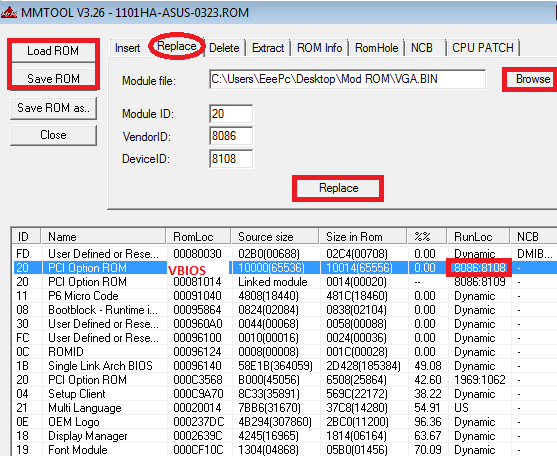
VideoBios flash on AMI BIOS for US15 Platform (Vendor ID:8086 Device ID:8108) 
Ingredients: MMTool; system BIOS; video BIOS; Bios flasher; Pendrive

1)Open with MMTool your bios (Load ROM)
2)Select Replace Tab
3)Select ID20 Option Rom as in picture (be sure that ID is GPU)
4)Select Browse (path of  VGA.bin compiled with CED) and after Replace
5)Save ROM or save ROM as...
6)Flash with your BIOS utility  (on Asus 1101HA series copy modded rom into a pendrive and change name in 1101HA.ROM. Restart PC and on boot press ALT+F2)

Driver Package for Windows 7:
e6xxdispext.inf   NOT for US15
e6xxdispext.sys NOT for US15
hccutils.dll
hkcmd.exe     Intel Tool (hotkey)
igd_XA.cpa
igd_XA.vp   
igd_XC.vp
igd_XO.vp
igdkmd32.sys  Main Driver File
igdkmd32.vp Kernel Module
igdlh32.inf        Installer Configuration 
igdogl32.exp    OpenGL file (useless?)
igdogl32.lib      OpenGL file (useless?)
igdogl32.dll      Main OpenGL 2.0 File
igdsgl32.dll      Main OpenGL 2.0 File
igdumd32.dll    WDDM directly linked to sys file
igfxcfg.exe        Intel Tool 
igfxcpl.cpl         Intel Tool (Control Panel File)
igfxdo.dll
IgfxExt.exe      Intel Tool
IgfxExtps.dll    Intel Tool
igfxpph.dll
igfxrENU.lrc       English Intel Tool
igfxres.dll            (useless?)
igfxress.dll          (useless?)
igfxressENU.lrc   English Intel Tool
igfxsrvc.dll           Intel Tool
igfxsrvc.exe         Intel Tool
igfxtray.exe         Intel Tool Tray Icon
libmfxhw32.dll    NOT for US15: Intel MediaSDK library

Driver Package for Windows XP:
ch7036.sys  video-output driver for Chrontel model 7036
ch7036.vp Voucher file for COPP
iegd.inf Driver Configuration File
iegd3dga.dll Direct3D support Dynamic Link Library
iegdcagt.cpa Agent for COPP
iegdcagt.vp  Voucher file for COPP
iegdckey.vp Voucher file for COPP
iegddis.dll Display Driver
iegdglga.dll OpenGL
iegdmini.sys Main Driver File
iegdmsys.vp Voucher file for COPP
libGLES_CM.dll OpenGL ES 2.0
libGLES_CM.lib (OpenGL ES useless file?)
libGLESv2.dll OpenGL ES 2.0
libGLESv2.lib (OpenGL ES useless file?)
lvds.sys Port driver for Internal (GMCH) LVDS
lvds.vp Voucher file for COPP
sdvo.sys Port driver for SDVO devices
sdvo.vp Voucher file for COPP
softpd.sys Port driver for VCH devices
softpd.vp Voucher file for COPP


INF Parameters:
Useless: Memory and max devices connected not working on US15, FeatureScore (this key tells to windows if a driver is designed for an OS and if is better than an other),Pcf version default 700 (the other value is 400) don't change it!

_________________________________________________________________________________
Extras:
UEFI\EFI  ENG - ITA - VIDEO
Overlay function for Windows XP: (a technique to hold the decoded video frame only for XP,linux and Meego):
1)Intel ® EMGD offers a video overlay feature to speed up video display
2)Framebuffer blending of 3D graphics with overlay does not cause any significant increase in CPU or GPU usage compare to other methods such as compositing and works with OpenGL,OpenGL ES,Direct3D.
3)The media application needs to play the video using the overlay plane. Most applications, by default, play video in overlay
4)This feature reduces the amount of CPU cycles to achieve video and the 3D blending effect compared to programming on a standard operating system API.
5)Problem: Black corruption in some display element
Under windows xp is fixable with 2D Alpha Override Feature but:
A)Minor increase in CPU usage due to the overriding operation
B)Windows XP display must be set to 32 bits (I hope no one is using 16 bits)
C)Microsoft WHQL may fail if it is tested when this feature is turned on
D)This feature will slow down 2D operation slightly. Most of the time it is not noticeable to the user
How to translate Installation Package: Add Lang Package to Driver's Archive Path\Lang\LPCO\

Windows Registry Driver Initialization Keys:
HKEY_LOCAL_MACHINE\SYSTEM\ControlSet001\Control\GraphicsDrivers\Configuration\CMO11000_09_07D9_65^7C5B51B4D1A3124A0D6C4D020E28B7E6\00\00
-> Hexadecimal values are in (VALUE) and as you can see are for 1366x768 display
To update the new value just disable gpu and then renable it from Device Manager (should be sufficient also a  Windows restart).
PS. If you find something useful to edit post HERE!

VGA\HDMI Port AutoDetection:
HotPlug Function:Sometimes reading of EDID may fail, especially when the user wiggles the connectorwhile attaching the display. You can try to fine tune the  HotPlugDelay timing to suit
your usage, within the range from 100ms to 1000ms with stepping of 10ms. Note that
setting the  HotPlugDelay value too low may prevent the monitor from being
detected, while having the value too high will lock the system longer before detecting
the monitor. Recommended default value is 550ms.
The hot plug feature is supported for single sDVO or dual display setup; however, note
that the hot plug feature does not apply for the LVDS transmitter.
This parameter is used to enable or disable the
hot plug feature for an sDVO port. Default 550ms
Unit in ms Range 100-1000ms

PortHotOverride: The  PortHotOverride control is used to keep a specified display port constantly on,
irrespective of whether the specified display monitor is connected.
Note: There is a potential risk in enabling this registry key. The default driver is designed to
have unused ports closed rather than open/hot; in some rare cases it can do damage to
the hardware. This is not a substitute for hot plugging and should not be used as such;
repeated removals and connections will cause stress to the card.

Test fails: This entries key works but doesn't change the autodection situation. No other idea to fix this little bug. Workaround to open VGA port are: Simple Right click on intel trayicon or open Intel tray icon or press win+P and select an option or run c:\windows\system32\igfxcfg.exe
Other possibility is to enable porthotoverride and enable igfxcfg.exe system autorun manually (but this solution isn't a cool )

Upscaling\Downscaling\Panning:
While XP driver supports upscaling feature seems that 7 edition don't. Anyway on Win 7 datasheet there is the possibility to upscale CH7308 LVDS Trasmitters and the procedure should be also compatible with EDID-less pannel
In Windows 7, upscaling is supported through the CH7308 LVDS transmitter. When a
lower resolution (compared to native resolution) is selected, the panel will be scaled to
fit the panel while maintaining the aspect ratio.
The Intel ® EMGD can upscale lower-resolution modes (those smaller than the size of
the respective panel) to the native size of the panel connected to a Chrontel CH7308*
LVDS transmitter.
The Intel ® EMGD uses a user-supplied DTD with the native flag set (also known as
native DTD) as native timing for the panel connected to a CH7308 transmitter.
If the user does not supply a native DTD, Intel ® EMGD uses 1024x768 as the default
native timing and 800x600 and 640x480 as built-in standard timings.
To support upscaling, the LVDS transmitters require setting the pipe to native timing of
the panel despite the user-selected resolution. It also requires finding the native timing
(also known as native DTD) of the panel based on user-supplied configuration
information.
The CH7308 (sDVO) port drivers limit the list of supported modes to the size of panel.
The port drivers also mark one of the timings as native DTD as follows (it goes to the
next step only if native DTD is not found in the current step).
1. It finds the timing with the user-defined DTD with the native DTD flag set. This
becomes the native DTD for the panel.
2. If the panel is an EDID panel and user selected to use EDID DTDs, then the port
driver marks the EDID DTD as native DTD.
3. If the user supplies a DTD without the native DTD flag set, then the port driver
marks this one as the native DTD.
4. If none of the above steps works, the driver uses 1024x768 as the default native
timing and 800x600 and 640x480 as built-in standard timings.
The Internal LVDS connected to an EDID Panel supports scaling of modes other than
native mode. To support this, the port driver exports information to the EDID parser
that it can scale. The EDID parser does not remove other modes (that is, non-native
modes) from the mode table. It only marks the native mode. When the Intel ® EMGD
queries the port driver on which modes are supported, the port driver then removes
any modes that cannot be scaled (up or down depending on the port's hardware
capability). When mode-setting occurs, the second display in Clone mode can indeed
support non-native modes even though the panel had EDID. This occurs only if a native
mode can be found the port driver can scale. Otherwise, the port driver ignores the
scaling information and the Intel ® EMGD proceeds normally.
The driver also supports Internal LVDS Scaling on EDID-less panels. The steps that
enable this are the same as those described for the scaling of Chrontel LVDS

Panning Mode: I don't know if can be usefull for someone but this feature isn't upscaling is only a zoom.  The panning mode allows you to set a resolution that is larger than the native
resolution of the display panel.

Registry keys for Scaling Mode:
HKEY_LOCAL_MACHINE\SYSTEM\CurrentControlSet\Control\GraphicsDrivers\Configuration\%display Key%\00\00\
"Scaling"=dword:3
There must be multi %display Key% exist, you should find out the one you are using. This is easy, you can delete all keys first, and then change your current monitor's setting. There will be a new key automatically created and that's your display. Below is the scaling value options:
2: Center Image
3: Full Screen should be set
4: Maitain Aspect Ratio

What i think about 1024x600 display at 1024x768 (downscaling):
While IEMGD XP version and Intel Official Win 7 support this feature. I'm a littlebit confused with IEMGD 7\8\10 edition. I will try to check if is possible but this an hobby not my work :D
Possible solution: Read Up or Panning+Scaling?
Other GMA GPUs support this feature via downscaling registry key editing (applicable also with Change Netbook Resolution application) or via INI editing (before the installion of the driver)

Intel Video Decoding Dll
This source are not available for not Intel premium account but is available from Sony servers or in this blog
Package:
• mpeg2_dec_filter.dll
• mpeg2_spl_filter.dll
• mpeg4_dec_filter.dll
• mp3_dec_filter.dll
• mpeg4_spl_filter.dll
• h264_dec_filter.dll
• aac_dec_filter.dll
• ac3_dec_filter.dll
--------------------------------------------------
Some cheats: Exported from EeeCtl and are replicable also with RWeverithing program
/* kiwidrew's work */
#define EC_ST00                         0xF451 // ACPI: Temperature of CPU (C)
#define EC_SC02                         0xF463 // ACPI: Fan PWM duty cycle (%)
#define EC_SC05                         0xF466 // ACPI: High byte of fan speed (RPM)
#define EC_SC06                         0xF467 // ACPI: Low byte of fan speed (RPM)
#define EC_SFB3                         0xF4D3 // ACPI: Flag byte containing SF25 (FANctrl)

#define GPIO_PIN_VOLTAGE        0x0066 //

#define EC_FPWMH1                       0xFE26
#define EC_FPWML1                       0xFE27

1)Legacy Backlight,WORKS ONLY ON WINDOWS XP
This info was present also in intel documents
Path: Bus 0 Device 2 (Intel VGA Card)
Path where insert Brightness Level:  0xF4
Value Setted by EeeCtl:
UltraBright: FF the maximum value for brightness
Bright: B2
Medium: 7F
Low: 4C
Lowest: 19

Accepted values: 1-99 (1-15=really low values) and combination 0;1;2;3;4;5;6;7;8;9; A;B;C;D;E;F

2)Registry Settings for Win 8-10 that I have to test: (i reported here to remember them)
(Because newer Os uses DWM and should be a problem for GMA500)
-RTL_REGISTRY_CONTROL\GraphicsDrivers\Scheduler\VsyncIdleTimeout 
REG_DWORD 10 = default ;  0 = disable VSync control
RTL_REGISTRY_CONTROL is the same as HKEY_LOCAL_MACHINESYSTEMCurrentControlSetControl
-HKEY_CURRENT_USER\SOFTWARE\Microsoft\Avalon.Graphics\DisableHWAcceleration 
DWORD value 1=Disabled Hardware acceleration ; 0=Enable Hardware acceleration
-HKEY_CURRENT_USER\SOFTWARE\Microsoft\Avalon.Graphics\MaxMultisampleType
DWORD Value min0 max16
Default: 4 

Link:
DTD Calculator
Graphics Rendering Registry
BCEdit Settings